In this post, I’ll demonstrate how to configure Exchange 2013 or 2016 to use an autodiscover SRV record instead of an A record.
How does an SRV record work with Exchange and Outlook?
Outlook
2007 and higher will attempt a number of different methods to find the
autodiscover settings for your particular domain. The methods are tried
in the order below and once an autodiscover response is received, no
further methods are tried. In this example, our domain is
litwareinc.com:
- Attempt
to connect to the Service Connection Point in Active Directory. (This
is configured using the Set-ClientAccessServer and the
AutodiscoverServiceInternalUri parameter and specifies the URL to the
autodiscover.xml file. It only works for domain-joined computers)
- Attempt to connect to https://litwareinc.com/autodiscover/autodiscover.xml
- Attempt to connect to https://autodiscover.litwareinc.com/autodiscover/autodiscover.xml
- Attempt to locate the autodiscover.xml URL using the SRV method. (NB: Outlook 2007 requires the June 2007 update rollup: https://support.microsoft.com/en-us/kb/940881)
If none of these methods provides a valid autodiscover response then autodiscover fails.
What is an SRV record?
An
example of an SRV record for Exchange 2010, 2013 or 2016 is below. In
this example, our Exchange server namespace is mail.litwareinc.com.
Service: _autodiscover
Protocol: ._tcp
Port Number: 443
Host: mail.litwareinc.com
Priority: 0
Weight: 0
The Service name specifies the name of the service. For Exchange Autodiscover, this must be _autodiscover.
The Protocol informs the client whether this service uses TCP or UDP.
The Port number informs the client which port to connect on.
The Host informs the client of the hostname it should be connecting to for this particular service.
The
Priority specifies which target server the client should connect to
first. If two target servers have the same priority then the client
looks at the weight for each and decides which to connect to based on
which has the highest weight.
The
Weight specifies the relative weight when priorities are the same.
Larger weights have proportionately higher probability of being
selected.
Remove the autodiscover A record
Removing
the autodiscover.litwareinc.com A record means that clients will not be
able to connect to this address. This is helpful as we now no longer
need autodiscover.litwareinc.com as a name on our certificate and can
use a single name certificate for Exchange to cut costs and simplify the
namespace.
Do I need autodiscover names on my certificate?
No,
as long as there is no autodiscover.litwareinc.com A record in internal
or external DNS, there is no need for this name on the certificate. As
the client cannot resolve the IP, there is no way it can connect using
this name. The client will then use the next method in the search for
the autodiscover settings.
How to create an SRV record
Before you do this, ensure that you have set up an A record for mail.litwareinc.com in your internal and external DNS.
You
need to create an SRV record in both your internal and external DNS.
Use your DNS provider documentation to get instructions on how to set
this SRV record up in you external DNS.
To create an SRV record in internal DNS, go through the steps below:
1) Log into a domain controller which hosts the litwareinc.com zone
2) Right click on the litwareinc.com zone and select Other New Records
 3) Select Service Location (SRV) from the list

4) Click Create Record, enter the details below then click OK:
Service: _autodiscover
Protocol: _tcp
Port Number: 443
Host: mail.litwareinc.com
Priority: 0
Weight: 0
 6) Check that your record appears by clicking on the _tcp subdomain under the litwareinc.com zone:
 5) Check that your record was created successfully using nslookup
To do this, use the commands below:
nslookup
set q=srv
_autodiscover._tcp.litwareinc.com
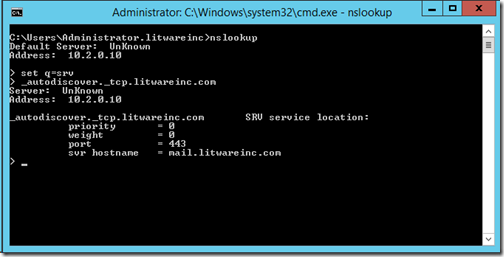 Above, we can see that the SRV record exists and that it has provided the host mail.litwareinc.com.
Test Autodiscover
To
check that it works, I have a client running Outlook 2013 that is not
on the domain and we’ll go ahead and create a new Outlook profile:


 We
can see that we get this notification which states that we are
redirected to mail.litwareinc.com which is as per our SRV record.
 We can select
“Don’t ask me about this website again” so we are no longer prompted or
you can add a registry entry to allow redirections to
mail.litwareinc.com without prompting. See here for instructions on how to do that using regedit or deploy the setting using logon scripts or Group Policy.
 This has worked and the account is set up correctly. We didn’t get an error to state that autodiscover.litwareinc.com is not on the certificate because this name is not used in the process.
Confirm settings using Outlook Test E-mail AutoConfiguration tool
To use this tool, see here. The results of the test can be seen below where we are getting a valid response:
 If
we click on the log tab, we can see the process that Outlook went
through to get the autodiscover response. It fails on a number of
different methods then eventually attempts the SRV record lookup and
this provides the response.

Source :- http://markgossa.blogspot.in/search/label/Autodiscover


